How to Create a vCard Contact QR Code for Garmin
A vCard QR code packages contact details in a format that phones can import. Save its text as a static QR card when you want the contact close at hand.
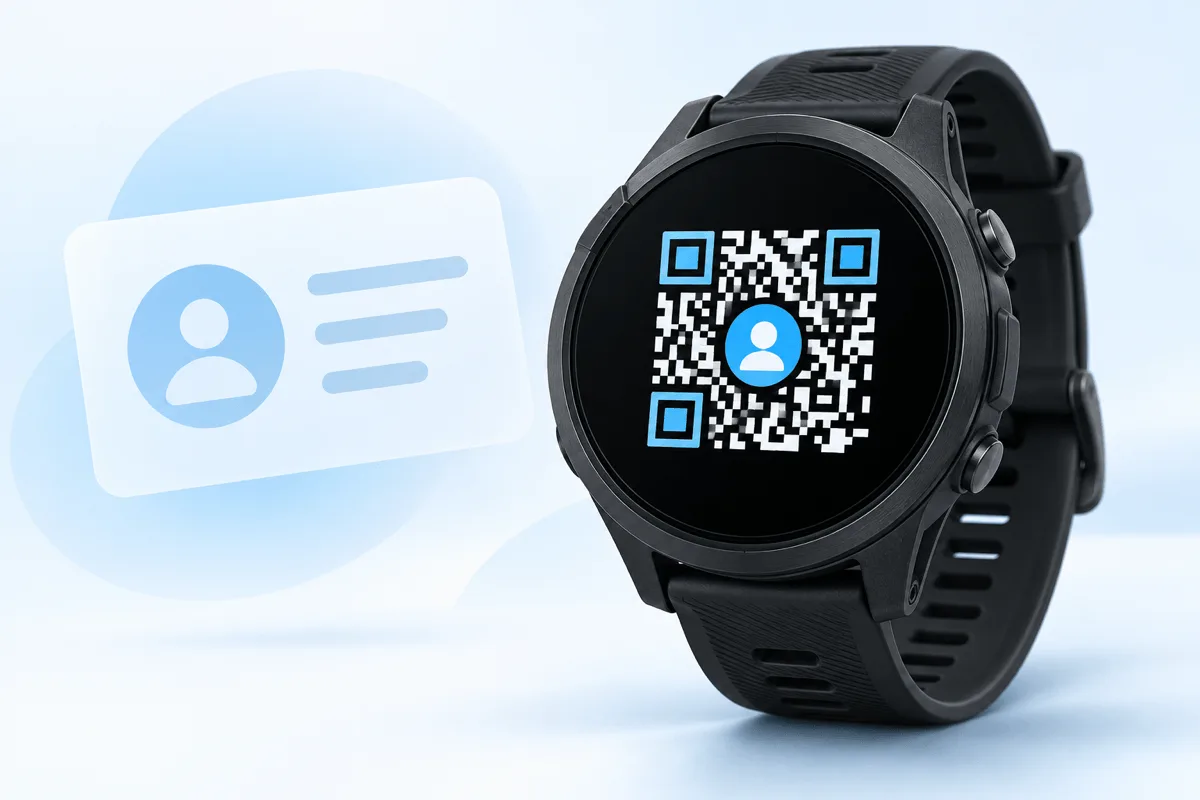
A contact QR code is usually a vCard encoded as plain text. When another phone scans it, the phone can offer to create a contact with the name, phone number, email address, company, and other fields included in the card. The QR image is only the container; the useful part is the data inside it.
The vCard is the contact data inside the QR code.
The fastest practical path
If the contact already exists on your phone, open the contact, choose Share, and look for a QR code or vCard option. If the phone gives you the vCard text, copy it. In WalletPro, create a QR card, paste the complete text into Value / Secret, save, and sync the watch. If the phone only shows a QR image, do not paste a screenshot into WalletPro; use the short example below or export the contact as a vCard file first.
For the one-second use case, do the setup once and use the watch afterward: open WalletPro, select the saved contact QR card, and show it. The first setup is not one second; displaying an already saved card is immediate.
The one-second routine
After the first setup, the practical routine is short:
- Open WalletPro on the Garmin watch.
- Select the saved contact QR card.
- Hold the watch where the other person can scan the complete symbol.
That is the one-second use case: one saved card, one selection, one QR screen. You do not recreate the vCard every time you share it.
What a vCard QR code contains
Here are concrete records you can copy into WalletPro. A name-only card contains just a display name:
Name only
BEGIN:VCARD
VERSION:3.0
FN:Alex Morgan
END:VCARD
A phone-only card still uses FN as a short label, but the only contact detail is the number:
Phone number only
BEGIN:VCARD
VERSION:3.0
FN:Alex phone
TEL:+15551234567
END:VCARD
For the common name-and-phone case, use the same structure with the person’s real name. For a fuller business contact, add email and optional company fields:
Name and phone
BEGIN:VCARD
VERSION:3.0
FN:Alex Morgan
TEL:+15551234567
END:VCARD
Name, phone, email, and company
BEGIN:VCARD
VERSION:3.0
FN:Alex Morgan
TEL:+15551234567
EMAIL:alex@example.com
ORG:PeakApps
TITLE:Support
END:VCARD
In WalletPro, paste one complete block into Value / Secret without the code-fence markers, save it as a QR card, and give the card a short name. The name-only example is useful for a quick identity card, the phone example for a call-back contact, and the full example for networking. Keep one vCard per WalletPro card so a scanner imports exactly the contact you intended.
Read the vCard lines
FN is the name shown to the person who scans the code. TEL is the phone number, EMAIL is an email address, ORG is the company or organisation, and TITLE is a role or job title. Keep the field names, colons, field order, BEGIN:VCARD, and END:VCARD. Line breaks are preferred when the input supports them, but WalletPro also recognises a complete record that Garmin Connect IQ has flattened into one line, with fields separated by spaces, tabs, commas, or semicolons. Paste the record itself, not the surrounding Markdown code-fence markers.
The most widely compatible starting point is a vCard 3.0 text record. It begins with BEGIN:VCARD, declares VERSION:3.0, includes a name such as FN:Alex Morgan, and ends with END:VCARD. Phone, email, organisation, address, and note fields can be added when they are genuinely needed.
Keep the record simple for a watch display. Use one value per line, avoid decorative text, and check that the contact name is easy to recognise. A smaller record creates a less dense QR symbol, which is easier for another phone to read from a Garmin screen.
Prepare your contact data
Start with the details you are comfortable sharing. A personal mobile number and email address may be enough. Add a company or website only when it helps the recipient identify the contact. Do not put passwords, private keys, or information that should stay confidential in a contact QR code. Anyone who receives the code can import the data.
If your contact app exports a vCard file, open the file as text and copy the complete vCard content. Preserve the BEGIN:VCARD and END:VCARD lines, the version line, and every field between them. Do not copy a screenshot of a QR image: WalletPro needs the text that the QR image represents.
Save the vCard in WalletPro
WalletPro is available in the Garmin Connect IQ Store. For a quick contact, select Contact phone, Contact email, or Contact phone + email. The card name becomes FN. Put the phone number or email address in Value / Secret. For the combined type, write the phone number and email address in either order, separated by a space, comma, or semicolon. Save and synchronise the watch.
The complete manual vCard route remains available for custom fields. Select the ordinary QR card type, enter a short card name such as Contact Alex, and paste the complete vCard text into Value / Secret. This is the right choice for organisation, address, note, multiple numbers, or any record you want to control field by field. WalletPro preserves the saved input. The card editing guide explains the same settings path and the on-watch editor; the length guide covers exact QR behavior and limits.
If the watch editor cannot accept a long value, use Garmin Connect IQ app settings to paste the complete record and sync again. Keep every marker, field, and value; Garmin Connect IQ may show the saved record on one line, and WalletPro accepts that transport form. Trimming a field or dropping END:VCARD can turn a valid contact record into data that a phone no longer recognises.
Test the contact QR code
Open the saved QR card on the watch and scan it with a second phone. The phone should show a contact import or contact preview rather than a page of unrelated text. Check the name, number, email, and any other fields against the original record before sharing it.
Test from the distance and angle you expect to use. Increase brightness and keep the entire symbol visible, including its quiet white border. If a phone reads the code but does not offer contact import, inspect the text for missing vCard lines or unsupported fields instead of immediately generating another image. The QR troubleshooting guide covers display, value, and scanner checks.
Know the limits
WalletPro displays static contact data. It does not synchronise changes from your phone contacts, refresh a live profile, or remove the contact data from a phone after it has been imported. If your phone number or email changes, update the saved value or vCard record and sync the revised QR card.
A Garmin watch is convenient for showing a contact code, but it is not a private address book. Review the fields before every share, keep a normal contact method available, and treat the QR as a copy of the information rather than as the source of truth.
The contact format, decoded text, screen contrast, and receiving phone all matter. Once those pieces agree, a vCard QR card is a practical way to carry selected contact details on your wrist.