WalletPro guide
Add, edit, and delete cards.
WalletPro cards are managed through Garmin Connect IQ settings or directly from the watch. After sync, the watch keeps the cards available offline.
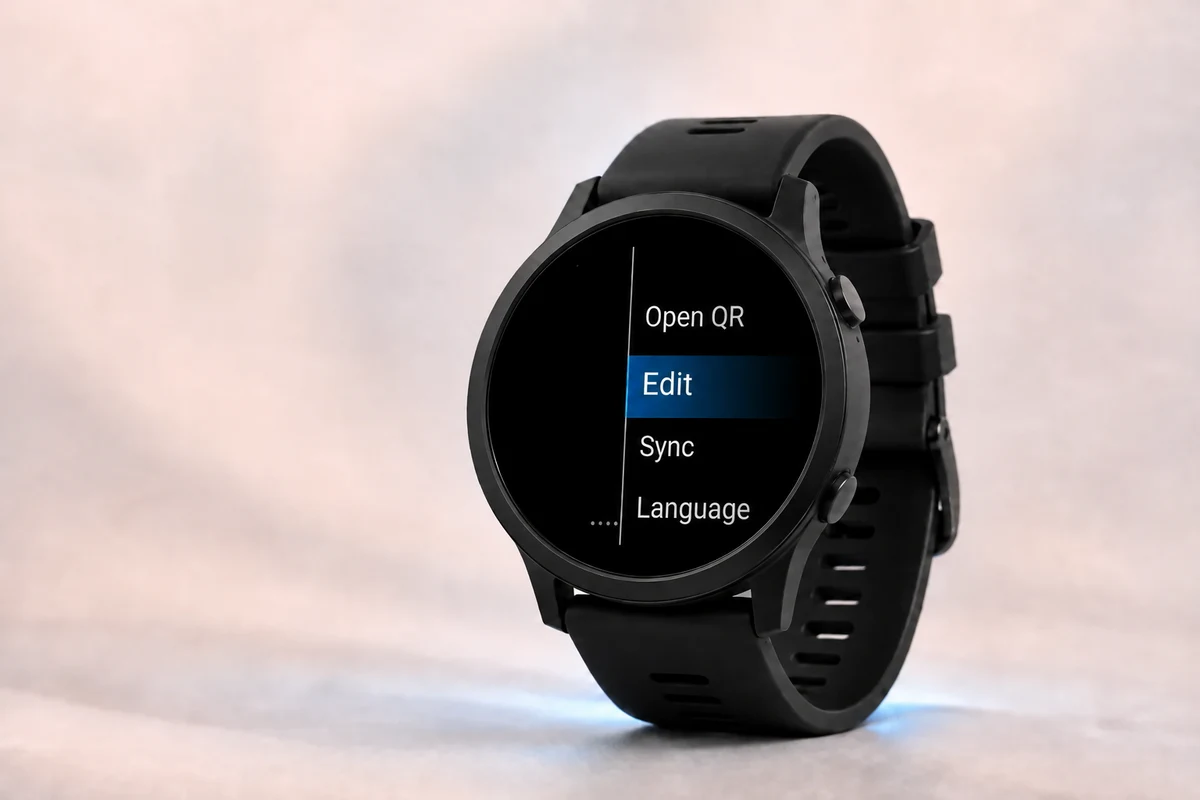
How WalletPro cards work
A WalletPro card is simple: a name, a card type, a value or 2FA secret, and an optional color. The app opens the matching QR, barcode, Note, or TOTP 2FA view on the watch.
WalletPro works offline after Garmin Connect IQ settings sync. Garmin Connect IQ app settings are the main place where card data lives. When you save settings and sync your watch, WalletPro reads those cards on the device. You can also add, edit, and delete cards from the watch, and those changes use the same Garmin Connect IQ settings.
Retailer apps and changing codes
WalletPro reproduces the static data you save. It does not sign in to retailer accounts or systems and cannot retrieve or refresh dynamic QR codes, barcodes, or retailer tokens. If the official code changes when the retailer app opens or after some time, use that retailer app. A saved copy can stop working.
Add cards from Connect IQ Store
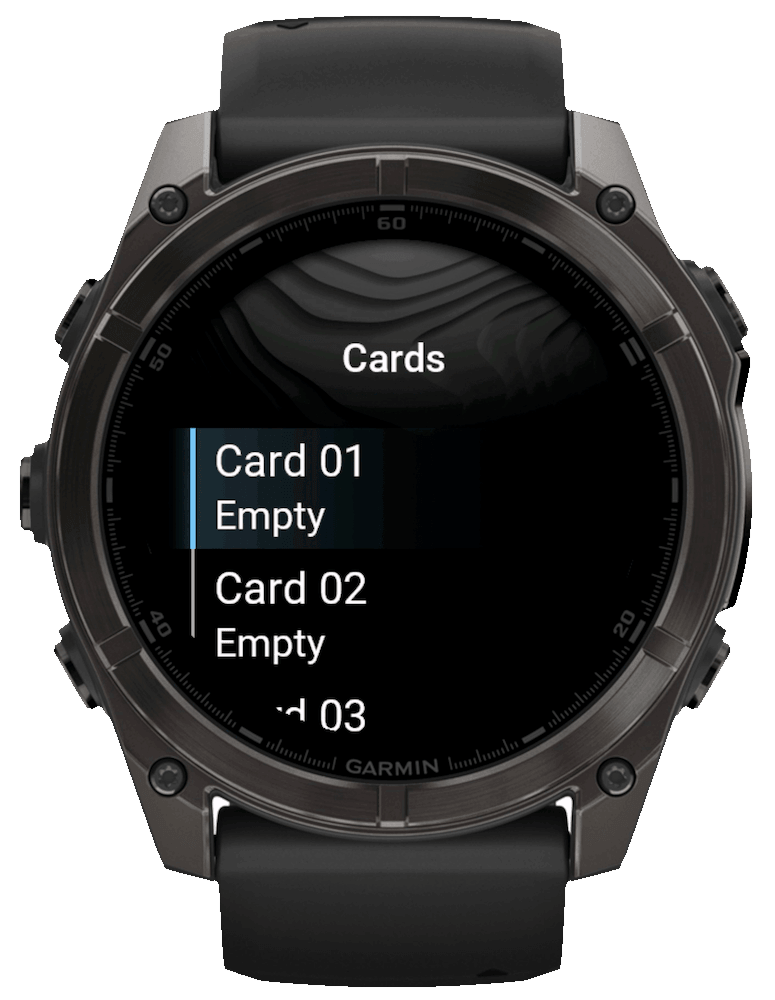
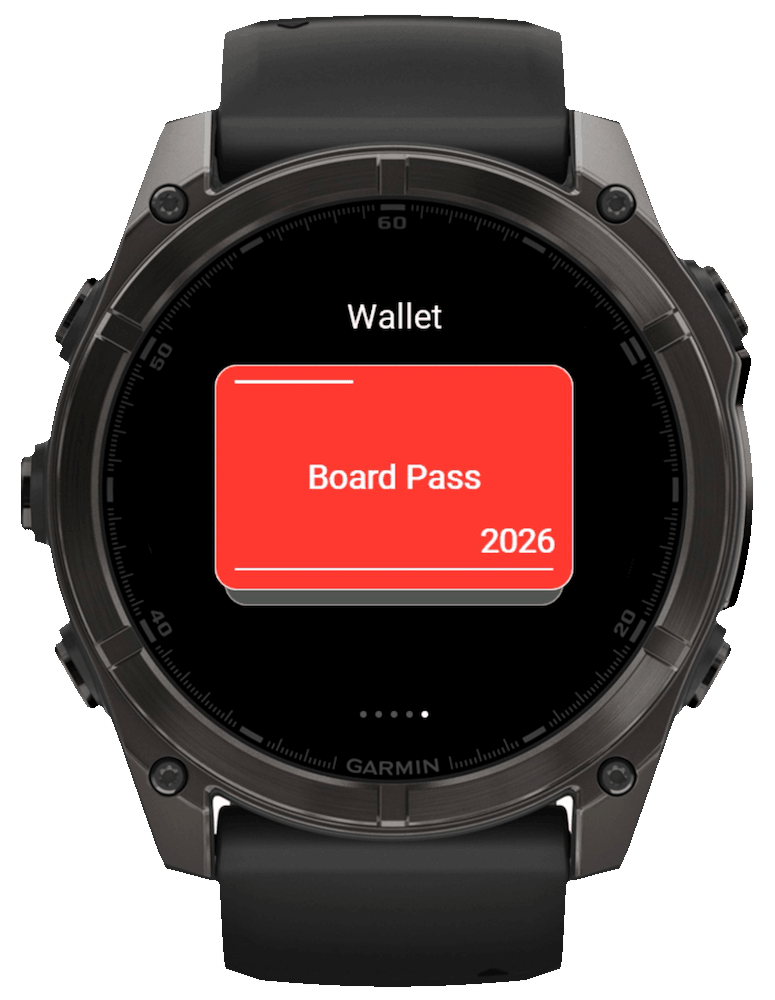
Pair the Garmin device, install WalletPro, then open Connect IQ Store and choose Device, My Device Apps, WalletPro, and Settings. In an empty slot, enter the card name, select the type, paste the exact Value / Secret, choose a color, and save. A slot is active only when Value / Secret is filled. Complete a device sync before checking the card on the watch.
Use Garmin Connect or Garmin Express
In Garmin Connect, open More, Garmin Devices, your device, Activities & Apps, the app category, WalletPro, and Settings. In Garmin Express, connect the device by USB, open IQ Apps, use the three-dot menu beside WalletPro, and open Settings. Menu names can vary by platform and version; save and complete a sync in either case.
Add or edit cards on the watch
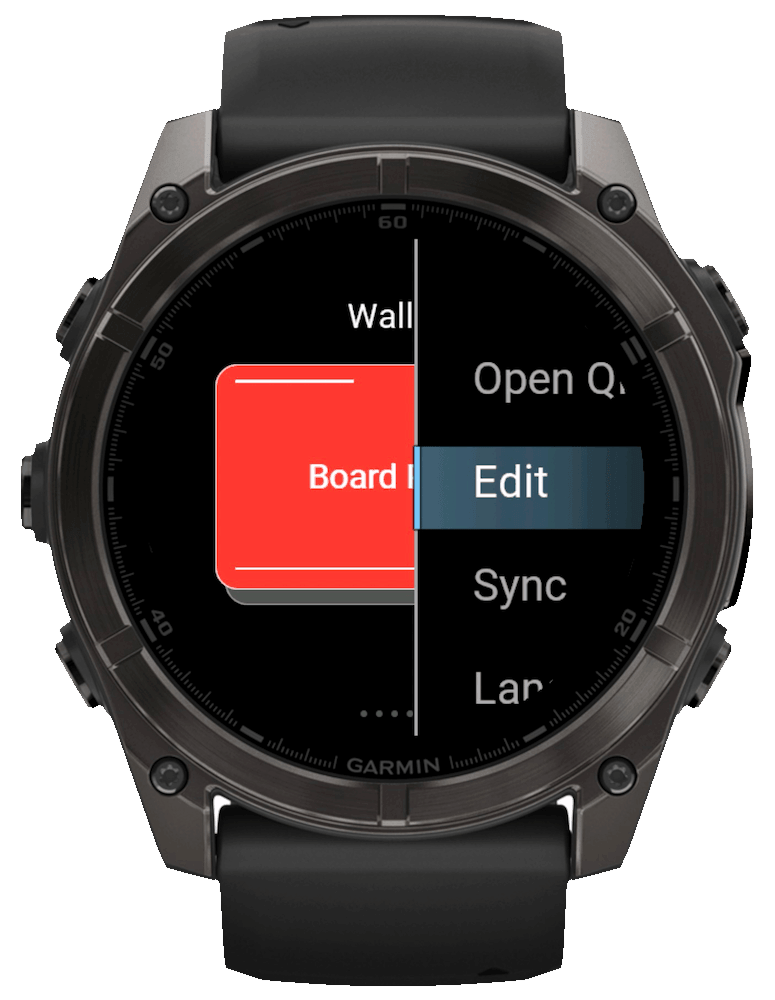
Open WalletPro on the watch. Hold UP/MENU, or long-touch the wallet list if your device has touch. Choose Add when the wallet is empty, or Edit when cards already exist. Select a slot, then edit its Name, Type, Value / Secret, and Color. The ordinary Value / Secret action replaces the complete current value.
Delete a card
On the watch, open Edit for the card and choose Delete. Or open WalletPro in Garmin Connect IQ settings through Device > My Device Apps > WalletPro, clear that card’s Value / Secret field, save, and sync again. If it still appears, reopen WalletPro after syncing; other cards remain available.
Update card data on the watch
If a card changed on the phone but the watch still shows the old value, save the Garmin settings, complete a device sync, and close and reopen WalletPro. Watch-side edits are stored in the same Garmin-managed app settings. With the device connected, open WalletPro Settings in Connect IQ Store or Garmin Connect to view the current values.
Website addresses on Garmin keyboards
Select QR in the card editor and choose Add / once for each slash that the Garmin keyboard cannot enter. For https://, enter https:, then choose Add / twice. Add / appends only to the current draft; it does not prefill, replace, or rewrite a saved value. If the action is not shown, paste the complete address into WalletPro's Garmin Connect IQ app settings, save, and sync.
Multi-line Notes
A Note has one Value. In the watch editor, Add line appends a line to the draft; the ordinary Value / Secret action replaces the whole Note. Garmin Connect IQ app settings also replace that whole Value. The QR and barcode length guide lists display and editor behavior by device. For a readable emergency Note and a separate plain-text QR example, see the medical information guide.
2FA setup links from password managers
For a 2FA card, paste either the raw Base32 secret or the complete otpauth://totp setup link from the original password manager, authenticator, or service into Value / Secret. Setup links with or without an account label are accepted, including otpauth://totp?secret=.... Use the decoded link text, not a screenshot of its QR image. WalletPro supports six through eight digits and periods from 15 to 120 seconds. Unsupported values are rejected instead of being silently changed. HOTP and SHA-512 are not supported. The QR and barcode length guide documents format, display, and editor details by device.
What to put in the value field
Enter the exact decoded value for the selected type. QR needs the text inside the original QR, not a screenshot. For Wi-Fi setup, use the complete WIFI payload, including the network name, password, and terminator. EAN-13 accepts 12 digits or 13 with a valid check digit; EAN-8 accepts 7 digits or 8 with a valid check digit; UPC-A accepts 11 digits or 12 with a valid check digit. Codabar requires a supported start and stop guard. EAN-8 is used on small retail packs; Codabar on library and shipping labels; Data Matrix on compact product labels and packaging; PDF417 on boarding passes and ID cards. Use Code 128, Code 39, Aztec, Data Matrix, or PDF417 only when it matches the original format. For 2FA, enter the Base32 secret or a complete otpauth://totp setup link, with or without an account label.
parkrun barcode
For parkrun, enter the complete athlete ID, including the initial A, such as A1234567. QR is the default; if an event uses a scanner that cannot read QR, choose Code 128 for the same value.
For a contact QR code, see the vCard contact QR guide to prepare your details and save them as a QR card.
For long values, see the QR and barcode length guide to compare stored capacity with the format- and screen-dependent scannable limit.
If a store code does not scan
Check both the code format and the decoded content against the retailer's official app, website or help page, or the physical card. The printed number can differ from the data encoded in a QR code or barcode. Compare decoded data, not the image pattern: two QR images can look different and still contain the same value. Even a correctly copied static code works only if the retailer accepts it.
After setup
Open WalletPro on the watch, select a card, and the QR, barcode, Note, or TOTP/OTP 2FA view opens locally on the device. Once the cards have synced, they remain usable without a phone connection.
For a stationary scanner, if the watch screen turns off while you present the code, tap the screen to wake it; the selected card remains open.