Can You Put an Employee Badge or Time-Clock Card on a Garmin Watch?
A Garmin watch may display a static workplace QR code or barcode, but it cannot replace every employee badge or time-clock credential.
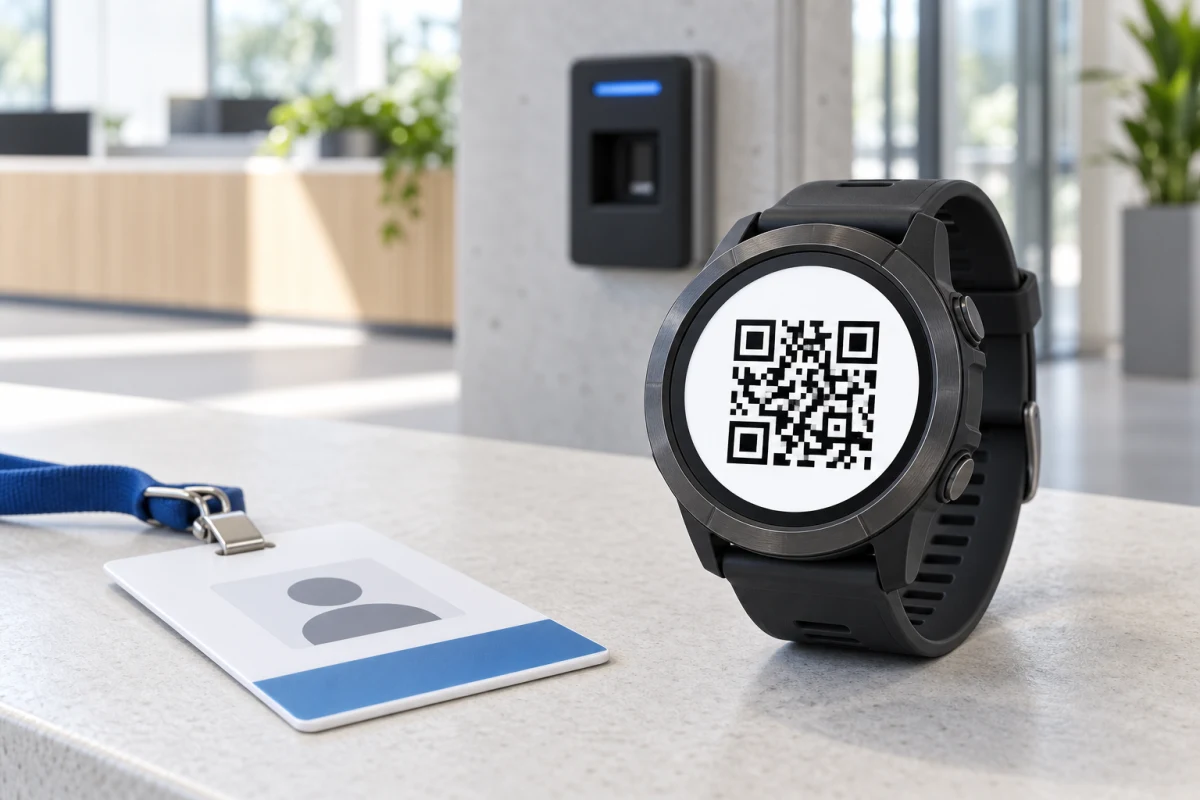
Employee and time-clock credentials do not share one universal format. A workplace terminal may read a camera-visible QR code, a linear barcode, an RFID or NFC credential, a magnetic stripe, a PIN, or biometric data. The exact reader used by the employer matters more than the word “badge” or “card.”
An RFID/NFC badge is not a QR code or barcode. It is a separate physical-chip contactless credential, and WalletPro cannot scan, read, write, or emulate that chip from the watch.
A dynamic QR is a code whose value changes, not a static QR image. Only a static QR with an unchanged complete value can be a WalletPro candidate for display and terminal scanning. WalletPro cannot refresh, validate, or reproduce a dynamic QR code.
Start by identifying the reader
Ask HR, your manager, or the workplace administrator what the terminal actually reads. A camera or laser scanner that reads a printed employee badge is a different system from a contactless reader that detects a chip. A shared QR at the entrance may identify the location and open a web check-in flow rather than identify you by itself.
Camera-scanned data can sometimes be displayed on a watch. Tap-based and biometric credentials need hardware or an account interaction that a watch screen cannot reproduce. Do not infer the format from the badge artwork, the printed employee number, or the fact that a phone app shows a code.
When a watch copy can work
A static QR or supported linear barcode is the clearest candidate. It can be a personal employee ID printed on a badge, a stable work access pass, or a code that the authorized terminal scans from a screen. The value must stay unchanged and the employer must permit a watch display. A generic scanner reading the image is useful evidence, but it is not proof that the company terminal will accept it.
WalletPro can display the same value as a supported QR, Aztec, Code 128, EAN-13, Code 39, or UPC-A card. Preserve the original symbology: turning a Code 128 badge into a QR code can produce a readable image that the configured scanner does not recognize. PDF417, Data Matrix, and other formats are not converted by WalletPro.
When it will not replace the badge
WalletPro does not emulate RFID, NFC, or magnetic-stripe credentials. Workplace proximity badges may use low-frequency RFID, 13.56 MHz contactless technology, or a proprietary credential. A Garmin watch screen cannot transmit the chip identity, swipe a magnetic stripe, or enroll itself with the employer’s access controller. Garmin Pay is a payment feature, not a general employee-badge emulator.
A code that changes or is account-bound is not static badge data. If the code refreshes, appears only after sign-in, expires after a short time, depends on location or shift, or opens a portal that performs another check, saving one frame is not enough. PIN, fingerprint, face, palm, and other biometric systems also have no complete screen code for WalletPro to store. Keep using the employer’s official method.
A safe static-badge workflow
The source must be the original badge image or file. Decode the symbol itself, not OCR text, the number printed below it, a cropped fragment, or a screenshot of an app before the code has loaded.
- Ask whether the employer allows a screen-based copy and whether the code is personal or only identifies a workplace terminal.
- Import the original image or choose the original file in a decoder that identifies barcode symbology and returns the complete value. Keep the full quiet zone around QR or barcode data.
- Confirm the result is QR, Aztec, Code 128, EAN-13, Code 39, or UPC-A. If it is PDF417, Data Matrix, NFC, RFID, a magnetic stripe, or a code that changes, keep the official credential.
- Open WalletPro Settings in Garmin Connect IQ, create or edit a card, select the same format, paste the complete value into Value / Secret, save, and synchronise. Use Settings for a long value instead of typing it on the watch.
The WalletPro card editing guide covers the settings and on-watch editor. If the symbol does not scan, the QR and barcode troubleshooting guide helps separate a wrong value from a display, brightness, distance, or reader problem.
Test before relying on it
Keep the employer-issued badge available until the terminal confirms the watch copy. Open the saved card before a shift, turn on the display, use enough brightness, and show the entire symbol straight to the scanner. Check that the quiet zone is not clipped and that the value has not changed since setup.
Reports from workplace communities describe fixed barcodes on name badges and clock-in cards being read by physical time clocks. Other reports describe QR check-in systems whose codes change, require an account, verify a location, or use a shared site code. Those are different cases. A successful read by a generic scanner is not an authorization from the employer.
If the watch is rejected, use the official badge or app and ask the workplace administrator whether another credential is supported. Do not clone, alter, or bypass an RFID/NFC badge or an anti-buddy-punch control. A watch copy should be an authorized convenience, never a way around the company’s access or attendance rules.
The practical boundary
WalletPro is a good fit when your workplace gives you a stable QR or supported barcode and explicitly accepts that symbol from a watch screen. It is not a universal employee ID, NFC badge, RFID key, magnetic swipe card, biometric identity, PIN terminal, or live attendance account. Static data can be stored offline after synchronisation; changing credentials must remain with the system that issues and validates them.
Keep the original credential as the source of truth, test the watch at an authorized terminal before your next shift, and tell the employer exactly which format you want to use. This keeps the workplace test tied to the approved credential and reader.
WalletPro is available in the Garmin Connect IQ Store.
WalletPro is suitable for some static employee QR codes and barcodes, but not for every workplace badge. Identify the reader, preserve the complete original format and value, get employer approval, and keep the physical or official credential available.